
Multiple WhatsApp Business accounts
Multiple WhatsApp Business Accounts on One Phone With StaffPeek
Multiple WhatsApp Business accounts on one phone means a business answers several of its numbers from a single handset, so staff stop passing phones around the counter. StaffPeek links each WhatsApp Business number to the same Android phone and keeps every number's customers apart.
- Shop, support and sales numbers together
- Each number keeps its own chats
- Add numbers as the business grows
Updated 25 November 2026
What are multiple WhatsApp Business accounts on one phone?
It is one handset reading and answering several WhatsApp Business numbers. The Business app itself holds two; a linked-device app covers the rest.
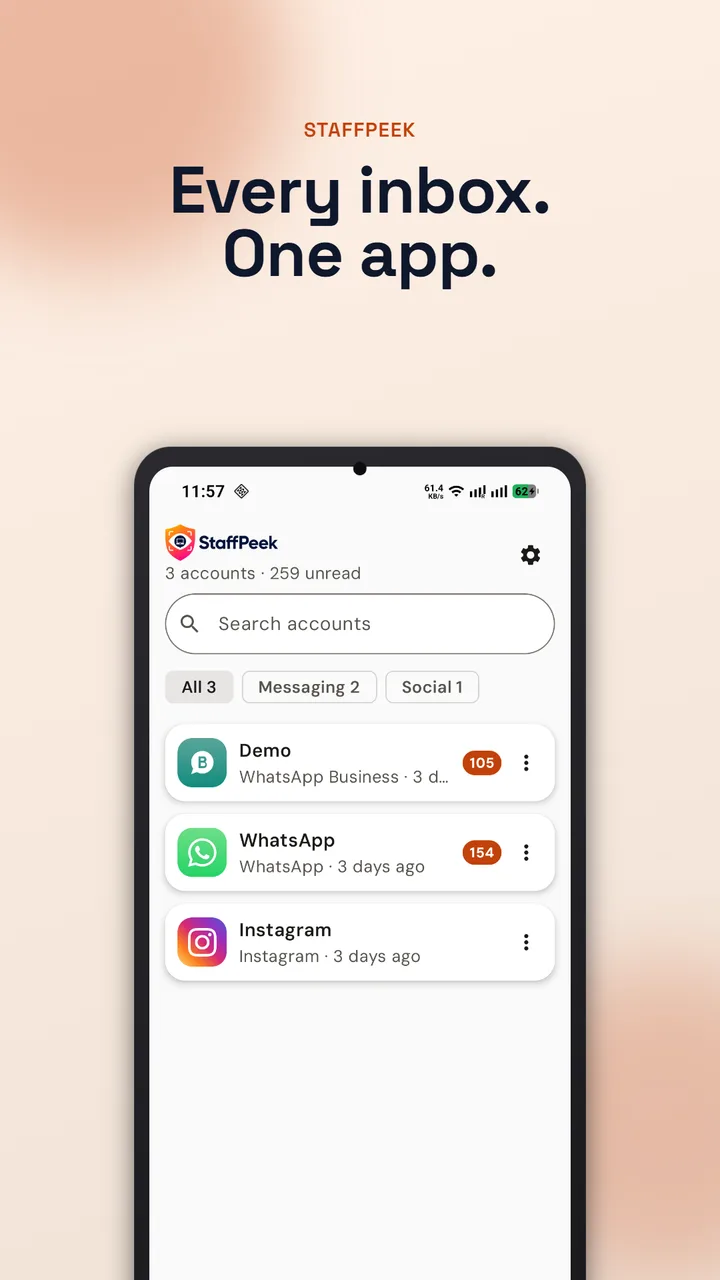
StaffPeek is that kind of app: every business number joins as a linked device and gets its own row in one list.
- Each business number still needs WhatsApp Business on a main phone.
- Labels, catalogs and quick replies stay managed in that number's own app.
- Customers see your normal business number, nothing changes for them.
Multiple WhatsApp Business accounts with StaffPeek: how it fits a business
StaffPeek lets an owner or manager keep several WhatsApp Business numbers open on one Android phone. A typical shop has a sales number on the counter phone, a support number with a staff member, and a delivery number with the dispatch team. Each of those phones keeps WhatsApp Business installed; StaffPeek adds itself as one more linked device for every number, using WhatsApp's own linked-devices feature. On the StaffPeek home screen each number appears with the name you gave it and an unread badge, so the owner sees at a glance which desk is falling behind. Messages, contacts and media of one number never mix with another, because every number runs in an isolated session. WhatsApp allows up to 4 linked devices per number, and StaffPeek takes one of those slots.
Multiple WhatsApp Business accounts benefits
Every desk in your pocket
Sales, support and delivery numbers are one tap apart on the owner's phone.
Spot the slow desk
Unread badges show which number has customers waiting.
Staff keep their phones
The main phones stay with the team; StaffPeek only adds a linked device.
No new numbers needed
Your existing business numbers keep working exactly as customers know them.
Grow past two
Add a fifth or tenth business number when you open a new branch.
Multiple WhatsApp Business accounts setup: add a branch number
Keep the branch phone near you for the first link. After that, it can be anywhere.
Choose WhatsApp Business
In StaffPeek, tap Add account, then WhatsApp Business.
Name the number
Type the branch or desk name, for example Andheri store.
Open linked devices on the branch phone
On the branch phone, open WhatsApp Business, then Linked devices, then Link a device.
Scan the code
Point the branch phone at the QR code shown in StaffPeek.
Check the row
Go back to the StaffPeek list. The branch number now shows its own unread count.
Multiple WhatsApp Business accounts screenshots
How business numbers look inside StaffPeek.
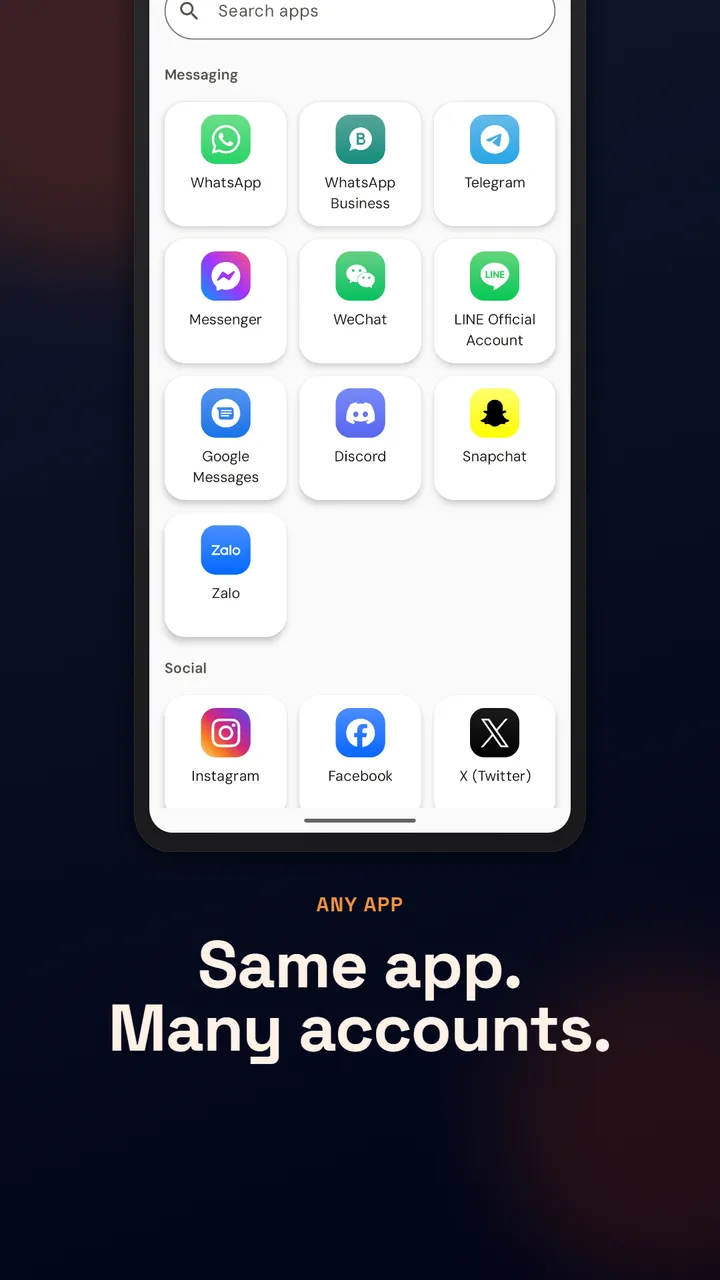
Pick WhatsApp Business once for each number you link. 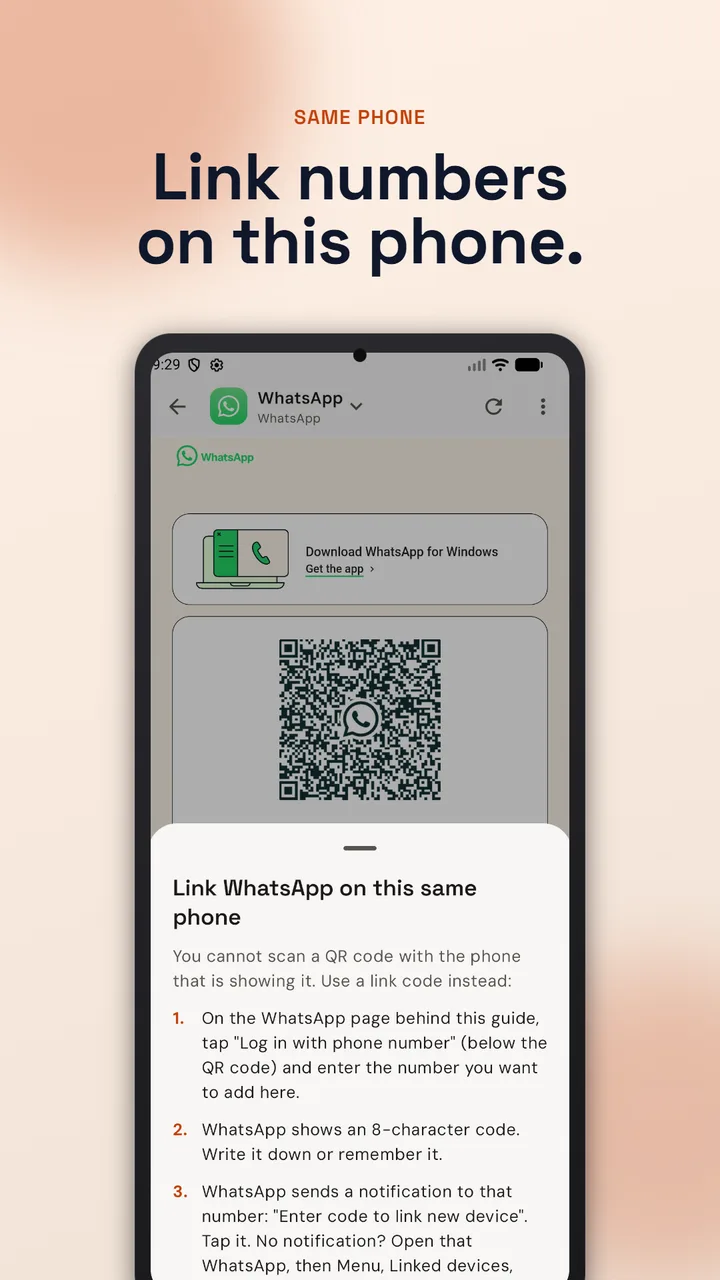
Scan from the branch phone, or follow the code guide on the same phone.
Multiple WhatsApp Business accounts: three ways compared
Ways to handle more than one business number, based on what each one allows.
StaffPeek
- Business numbers
- Up to 200 accounts per phone
- Numbers stay on staff phones
- Yes
- Monthly message fees
- None from StaffPeek
- Approval or setup by a developer
- Not needed
- Best for
- Owners who check many existing numbers
Two accounts in the WhatsApp Business app
- Business numbers
- 2
- Numbers stay on staff phones
- No, both SIMs sit in this phone
- Monthly message fees
- None
- Approval or setup by a developer
- Not needed
- Best for
- One owner with two SIMs
WhatsApp Business API provider
- Business numbers
- Depends on the provider
- Numbers stay on staff phones
- No, numbers move to the API
- Monthly message fees
- Per-conversation fees from Meta and the provider
- Approval or setup by a developer
- Usually needed
- Best for
- Large teams sending template messages at scale
Multiple WhatsApp Business accounts limits
Know these rules from WhatsApp before you link several business numbers.
- A business number can have at most 4 linked devices, and StaffPeek counts as one of them.
- If a number's main phone stays offline for 14 days, WhatsApp logs out its linked devices, StaffPeek included.
- Catalog editing, labels and some business tools are easier in the WhatsApp Business app on the main phone.
- StaffPeek does not send broadcast or bulk messages from your business numbers.
- Moving a number to the WhatsApp Business API removes it from linked devices, so it cannot also run in StaffPeek.
Multiple WhatsApp Business accounts example: a pharmacy chain
This is an illustration, not a customer story. Rahul owns 3 pharmacies in Indore, each with its own WhatsApp Business number on a counter phone. He links all 3 to StaffPeek on his phone. On a Sunday evening the list shows 31 unread on the Vijay Nagar number and 2 on the others. He calls that store manager and asks for a second staff member on the counter.
Multiple WhatsApp Business accounts price
Two business numbers fit in StaffPeek before any payment. An owner who links a third branch pays ₹1,500, plus taxes, for each year of Android use. Paying ₹3,000, plus taxes, per year adds the desktop team monitor for Windows and Mac.
Multiple WhatsApp Business accounts FAQ
Which app runs multiple WhatsApp Business accounts on one phone?
- StaffPeek for Android does. It links every business number as a WhatsApp linked device and lists them together with unread badges.
What is StaffPeek for a business with many WhatsApp numbers?
- StaffPeek is an app for multiple WhatsApp Business accounts: the owner sees every branch number on one phone while staff keep the main phones.
How much do multiple WhatsApp Business accounts cost with StaffPeek?
- Linking two numbers is not charged. Branch three onward costs ₹1,500 yearly with taxes on top; the Android and desktop pair costs ₹3,000 yearly with taxes on top.
Can I have two WhatsApp accounts on one phone?
- Yes. WhatsApp and WhatsApp Business each allow a second account in their settings on most Android phones. StaffPeek adds more numbers beyond that.
How do I add a second number to WhatsApp Business?
- In WhatsApp Business, open Settings, tap the arrow next to your name and choose Add account. That works for a SIM in the same phone.
Can I have 3 different WhatsApp accounts on one iPhone?
- StaffPeek has no iPhone version. On iPhone, check WhatsApp's own account settings for the current limit.
Do customers see a different number when I reply from StaffPeek?
- No. Replies go out from the same business number, exactly as if staff typed them on the main phone.
Can my staff and I reply from the same business number?
- Yes. Linked devices share one chat history, so a reply sent from StaffPeek also appears on the staff phone.
Is this the same as the WhatsApp Business API?
- No. The API is a paid service for automated and bulk messaging. StaffPeek uses normal linked devices and keeps your numbers in the regular app.
What happens if a branch phone is switched off?
- The number keeps working in StaffPeek for some time. The branch phone must come online at least once every 14 days to keep the link.
Can I see which branch number has the most unread chats?
- Yes. Numbers with unread chats rise to the top of the list, each with its own count.
Read next
- Dual WhatsApp appTwo numbers, one handset.
- Link with phone numberConnect a number without scanning.
- Desktop team monitorEvery staff number on a Windows or Mac screen.
StaffPeek is an independent app by WappBlaster. It is not affiliated with, endorsed by or sponsored by WhatsApp LLC, Meta, Telegram, Google or any other service it works with. All product names belong to their owners.