
Link WhatsApp with phone number
Link WhatsApp With Phone Number, No QR Scan, Using StaffPeek
Link WhatsApp with phone number login connects a new device by typing an 8-character code instead of scanning a QR code, which is the only way when the screen and the camera are on the same phone. StaffPeek shows that code method as a guide laid over the WhatsApp page, one step at a time.
- Works on a single phone
- Guide shown inside the app
- Each linked number gets its own session
Updated 25 November 2026
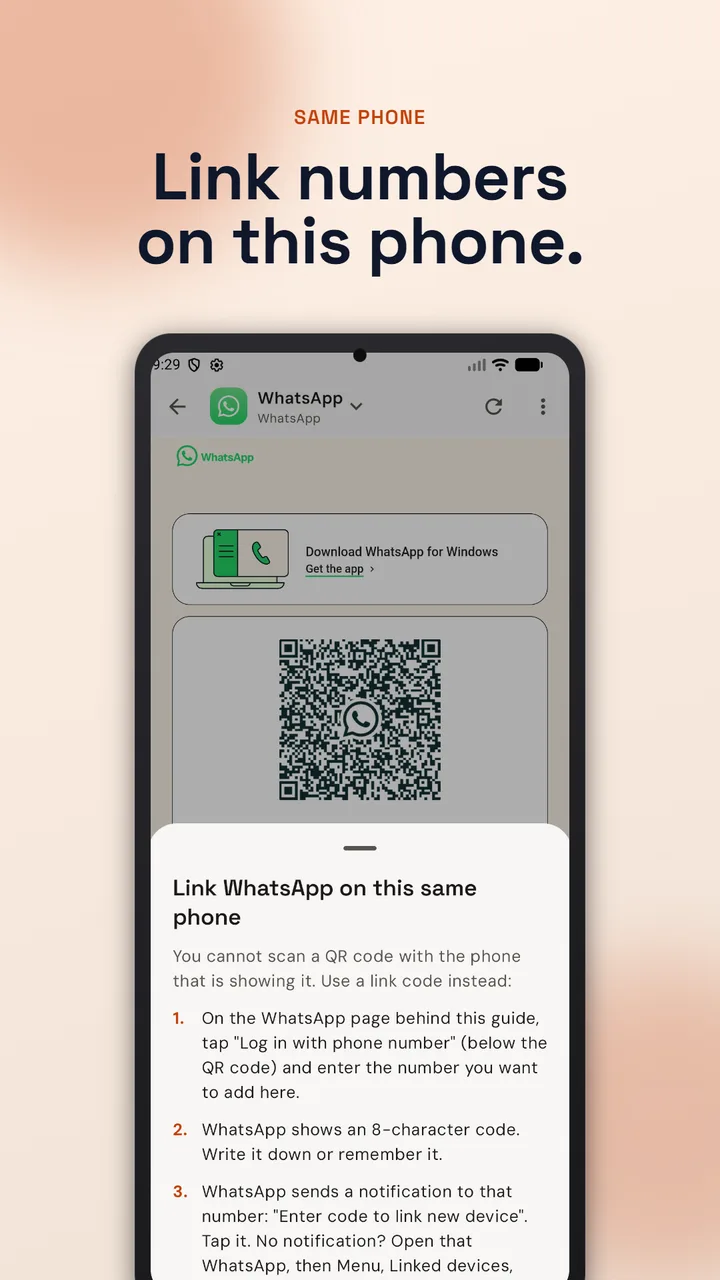
What is the link WhatsApp with phone number method?
It replaces the QR scan: the login page shows an 8-character code, and you type that code into the WhatsApp that owns the number.
StaffPeek walks you through those steps and keeps the number linked afterwards.
- The code appears on the new device; you type it on the phone that owns the number.
- WhatsApp also sends a notification that opens the code screen directly.
- The code expires quickly, so type it within a few minutes.
Link WhatsApp with phone number: why StaffPeek needs it
WhatsApp's usual way to add a device is a QR code: the new screen shows it and the main phone scans it. That fails when you want a second number inside StaffPeek on the very phone that also holds that number in WhatsApp, because a phone camera cannot read its own display. WhatsApp's answer is linking with a phone number. StaffPeek detects this case and lays a short guide over the WhatsApp page: pick the Log in with phone number link under the QR code, enter the number, note the 8-character code, open the Enter code to link new device notification on that number, and type the code. The chats then load in StaffPeek within seconds. The same steps work for WhatsApp Business numbers, and the link survives app restarts.
Link WhatsApp with phone number benefits
One phone is enough
No second phone or laptop camera is needed to finish the link.
Guide on screen
The steps sit next to the WhatsApp page, so nothing is missed.
Works for Business numbers
The same code flow links WhatsApp Business accounts.
Fallback when the camera fails
A broken or blurry camera no longer blocks linking.
Stays linked
After the code, the number stays signed in until you remove it.
Link WhatsApp with phone number: the six steps
Before you start: WhatsApp must already be set up for this number, on this phone or on another phone you can unlock.
Open the WhatsApp page
In StaffPeek, open Add account and pick WhatsApp, or WhatsApp Business for a business number.
Choose phone number login
Below the QR code, tap Log in with phone number.
Enter the number
Type the number you want to link, with its country code, and confirm.
Read the code
WhatsApp shows an 8-character code. Keep it on screen or write it down.
Enter it on the main WhatsApp
Tap the Enter code to link new device notification on that number, then type the code.
Return to StaffPeek
Switch back. The chat list loads and the number is linked.
Link WhatsApp with phone number screenshots
The screens you will see during and after the link.
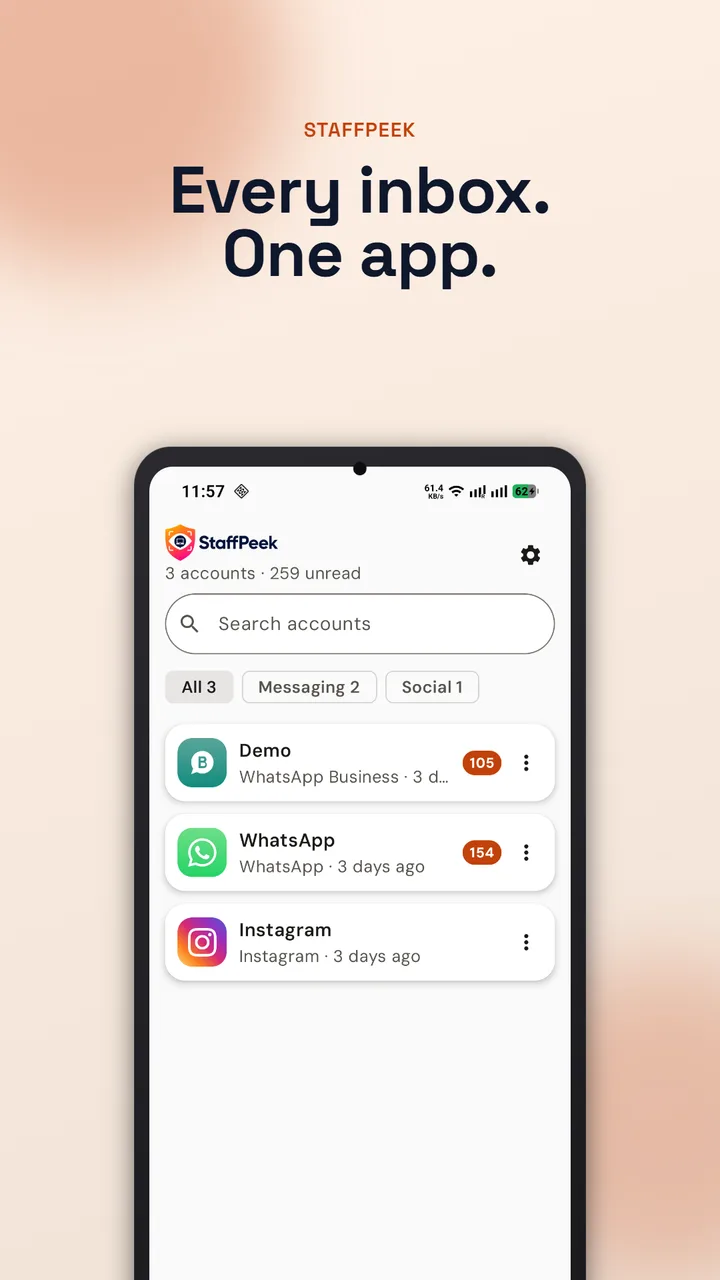
Linked numbers appear in the home list right away. 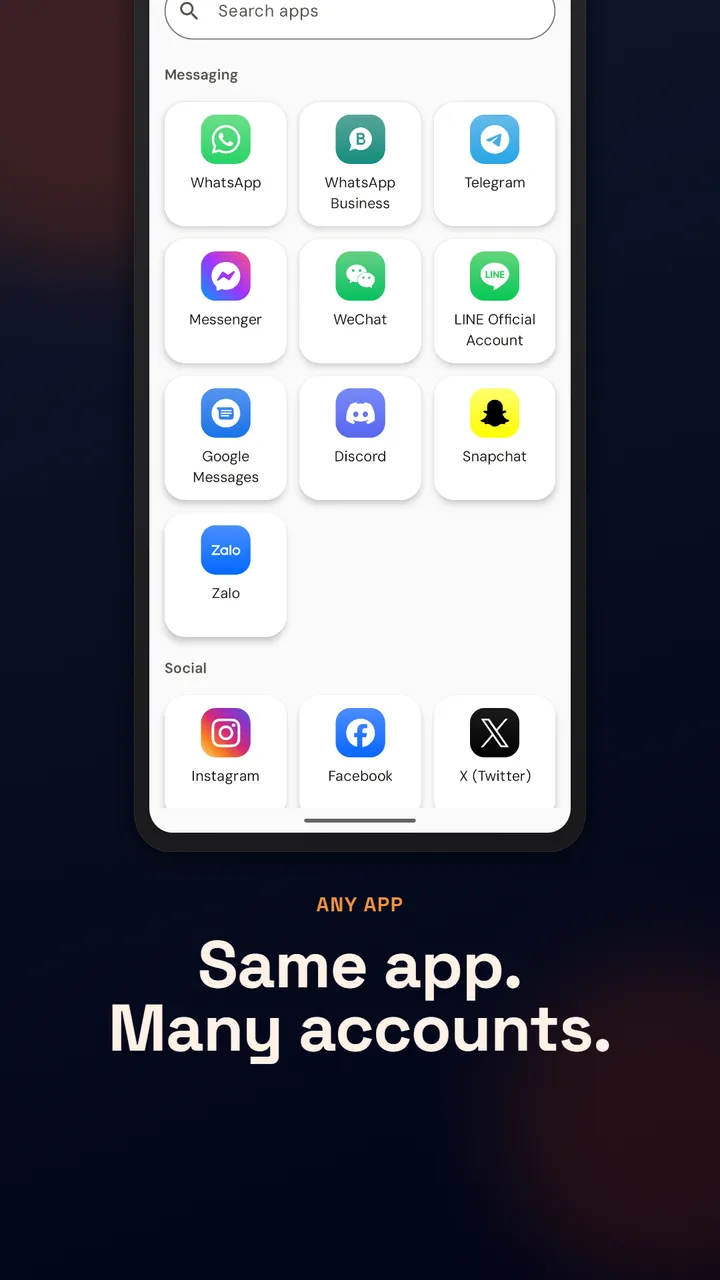
Start from Add account and pick the WhatsApp type.
Link WhatsApp with phone number vs QR code
Both methods add the same kind of linked device; pick by situation.
Phone number code
- Devices needed
- Can be done on one phone
- What you type
- An 8-character code
- Needs a working camera
- No
- Speed
- About 1 minute
- Best for
- Linking a number on the same phone
QR code scan
- Devices needed
- Two screens: one shows, one scans
- What you type
- Nothing
- Needs a working camera
- Yes
- Speed
- A few seconds
- Best for
- Linking from another phone that is nearby
Link WhatsApp with phone number limits
A few WhatsApp rules decide whether the code works.
- The code only links a number that is already set up in WhatsApp. It does not create or verify a new number.
- The code is valid for a short time. If it expires, ask WhatsApp for a new one.
- A number can hold 4 linked devices. Remove an old one under Linked devices if you hit the limit.
- If the notification does not appear, open Linked devices, tap Link a device and choose Link with phone number instead.
Link WhatsApp with phone number example: a dual-SIM seller
This is an illustration, not a customer story. Imran sells phone covers in Hyderabad and has two SIMs in one phone, each with WhatsApp. He wants both numbers in StaffPeek next to his Instagram shop. He cannot scan his own screen, so he taps Log in with phone number, gets a code like K7P2-9QXA, types it into the second number's WhatsApp, and both numbers sit in one list a minute later.
Link WhatsApp with phone number price
Linking by code is a WhatsApp feature, so the method itself is not charged. StaffPeek holds two accounts with no payment. Past that, it asks for a yearly fee of ₹1,500 (taxes extra), or ₹3,000 (taxes extra) when bundled with the desktop app.
Link WhatsApp with phone number FAQ
Which app helps link WhatsApp with phone number on the same phone?
- StaffPeek shows WhatsApp's phone-number login inside an Android app and guides you through the 8-character code.
What does StaffPeek do with the linked number?
- StaffPeek keeps the number as a linked device in its own session, so you can read and answer its chats from one list with your other accounts.
How much does it cost to link WhatsApp with phone number in StaffPeek?
- No charge applies to the first 2 accounts. Every extra account sits under one yearly plan: ₹1,500 for the phone app or ₹3,000 for phone and computer, taxes extra in both cases.
How to link WhatsApp to another phone without a QR code?
- Open WhatsApp Web on the other phone in StaffPeek, tap Log in with phone number and type the code it shows into the main phone's WhatsApp.
Where do I type the 8-character code?
- On the phone that owns the number. Tap the WhatsApp notification, or go to Linked devices, Link a device, then Link with phone number instead.
Why do I not get the Enter code notification?
- Notifications may be off or delayed. Open WhatsApp on the main phone, go to Linked devices and start the phone-number link from there.
Does linking with phone number log me out of the main phone?
- No. The main phone stays the owner of the number. The new device is added beside it.
Can I link a WhatsApp Business number with a code?
- Yes. Choose WhatsApp Business in StaffPeek, then use the same Log in with phone number option.
Is linking with a phone number safe?
- It is WhatsApp's own method, and the code only works when typed on the number's main phone. Never share the code with anyone.
How do I unlink the number later?
- On the main phone, open Linked devices and log out the StaffPeek session, or remove the account inside StaffPeek.
What if the code has expired?
- Go back to the login page in StaffPeek and request a new code. Type it within a couple of minutes.
Read next
- WhatsApp Web on AndroidThe two-phone scan method.
- Dual WhatsApp appBoth your numbers in one place.
- Multiple WhatsApp Business accountsEvery branch number for the owner.
StaffPeek is an independent app by WappBlaster. It is not affiliated with, endorsed by or sponsored by WhatsApp LLC, Meta, Telegram, Google or any other service it works with. All product names belong to their owners.