
Multiple WhatsApp scan software
Multiple WhatsApp Scan Software Is StaffPeek, on Android Phones and PCs
Multiple WhatsApp scan software is a tool that reads the WhatsApp Web QR code of several numbers, so one screen can hold many WhatsApp accounts at once. StaffPeek is that scanner on two devices: an Android app for a phone and a desktop app that holds every staff number on a PC.
- Scan from phone to phone or into a PC
- Each scanned number stays in its own session
- Works with WhatsApp and WhatsApp Business
Updated 26 November 2026
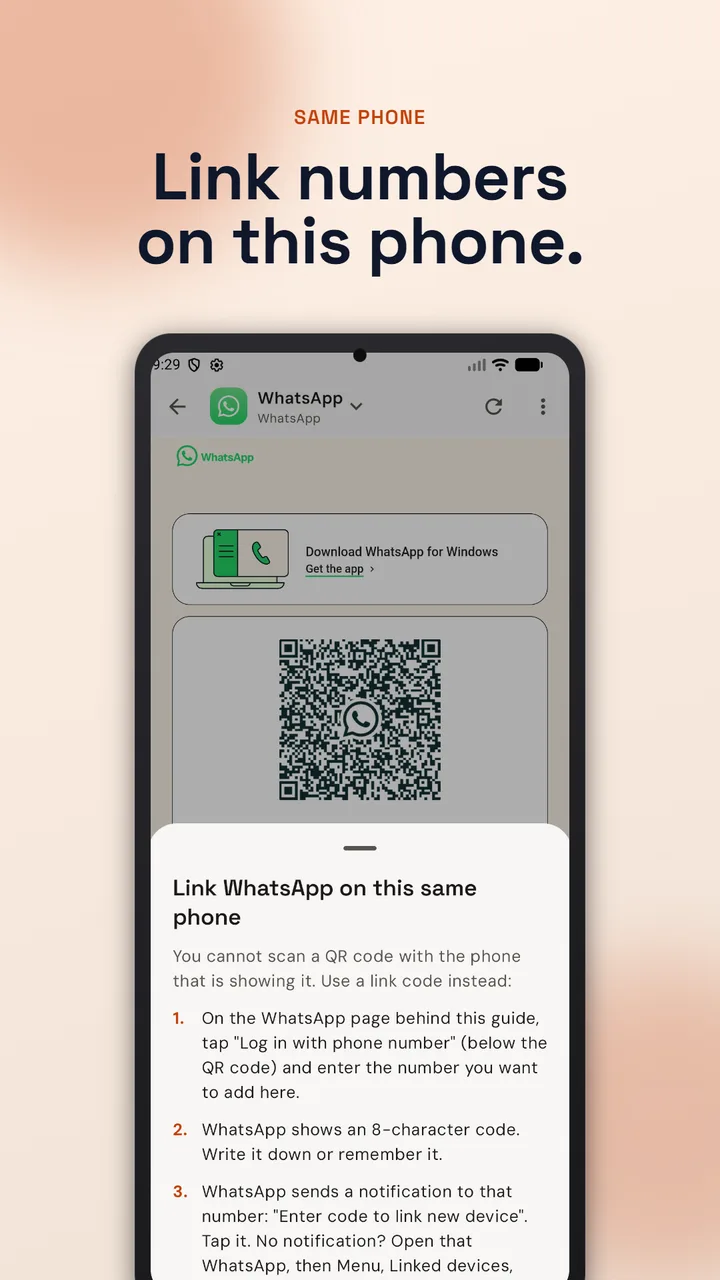
What is multiple WhatsApp scan software?
It is software that opens WhatsApp Web several times in separate sessions, so you can scan a different WhatsApp number into each one.
StaffPeek works this way on Android and on Windows and Mac, and keeps every scanned number signed in after you close it.
- Every scan adds one linked device to that number.
- The phone that owns the number does the scanning.
- Numbers on the same phone use a code in place of the scan.
Multiple WhatsApp scan software: how StaffPeek scans each number
Most scanner apps in the stores open one WhatsApp Web page and let you scan a single extra number. StaffPeek opens a fresh, isolated WhatsApp Web session every time you add an account, so the scan count is limited only by your device. On an Android phone you tap Add account, pick WhatsApp or WhatsApp Business, and the QR code appears; the phone that owns that number scans it under Linked devices. On a Windows or Mac computer, the StaffPeek desktop app does the same for every staff member, and a manager can hold all of the team's numbers on one PC with a follow-up CRM on top. If the number sits on the same phone as StaffPeek, a guide walks you through WhatsApp's 8-character code, because a camera cannot read its own screen.
Multiple WhatsApp scan software benefits
No scan limit of one
Scan the second, fifth or tenth number into the same app.
Phone or computer
Use the Android app on the move and the desktop app at the office.
Sessions that last
Scanned numbers stay linked after the app closes or the phone restarts.
Business numbers too
Pick WhatsApp Business before scanning, and its chats open correctly.
Team view on desktop
Every staff number scanned into one PC, with lead statuses and reminders.
Multiple WhatsApp scan software: scan a number in 5 steps
Keep the phone that owns the number unlocked and online while you scan.
Open a new WhatsApp slot
In StaffPeek, go to Add account and tap the WhatsApp or WhatsApp Business tile.
Show the QR code
Wait a moment until the WhatsApp Web QR code fills the screen.
Start scanning on the owner phone
On the owner phone, open WhatsApp, tap the three-dot menu, then Linked devices and Link a device.
Scan
Hold the owner phone over the QR code until it vibrates.
Repeat per number
Open another WhatsApp slot and scan the next number the same way.
Multiple WhatsApp scan software screenshots
Screens from the Android app before and after scanning.
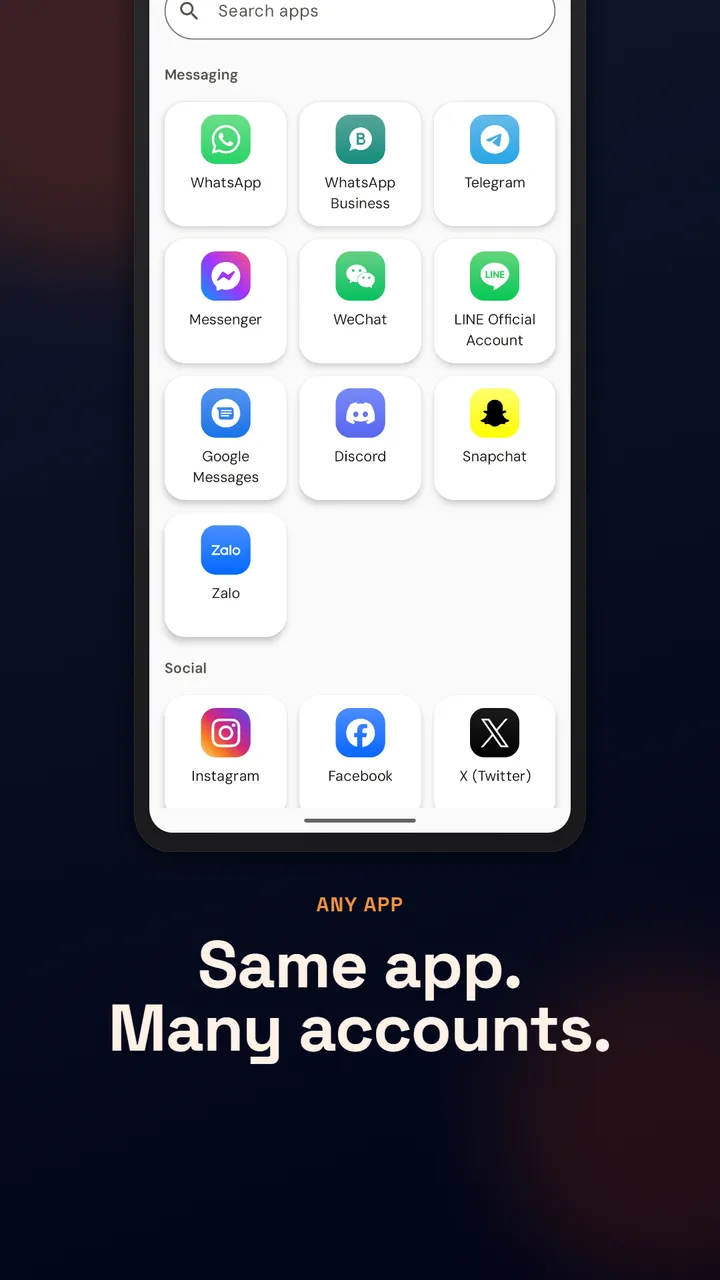
Pick the WhatsApp type before you scan. 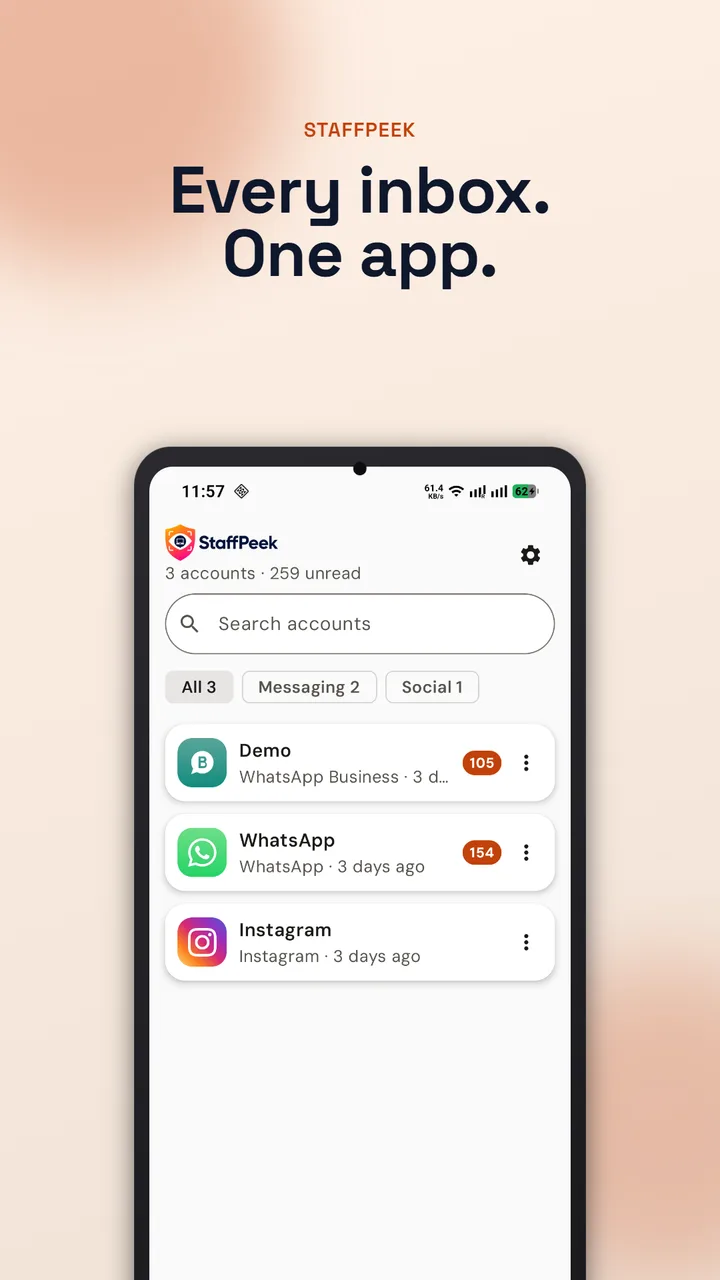
Scanned numbers appear in one list with their unread chats.
Multiple WhatsApp scan software: StaffPeek Android vs desktop vs a phone browser
Three places to scan extra WhatsApp numbers, side by side.
StaffPeek Android app
- Numbers you can scan in
- Up to 200 accounts per phone
- Stays linked after closing
- Yes
- Follow-up CRM and lead statuses
- No
- Screen made for it
- Phone screen
- Best for
- Owners with several numbers on the move
StaffPeek desktop app
- Numbers you can scan in
- Unlimited staff numbers per licensed PC
- Stays linked after closing
- Yes
- Follow-up CRM and lead statuses
- Yes
- Screen made for it
- Computer screen
- Best for
- Managers who oversee a whole team
Phone browser in desktop mode
- Numbers you can scan in
- One per browser profile
- Stays linked after closing
- Often lost when the tab or data clears
- Follow-up CRM and lead statuses
- No
- Screen made for it
- Shrunken desktop page
- Best for
- A quick one-off look
Multiple WhatsApp scan software limits
Scanning uses WhatsApp's linked-devices feature, so WhatsApp's rules decide the edges.
- A scan only links a number that already runs WhatsApp on its owner phone; scanning cannot create a number.
- Each number takes at most 4 linked devices, and every StaffPeek scan uses one slot.
- An owner phone that stays without internet for 14 days drops all of its linked devices.
- Scanned sessions show WhatsApp Web features, so a few phone-only features are missing.
- StaffPeek has no iPhone app. On iPhone, use the desktop app on a computer instead.
Multiple WhatsApp scan software example: a coaching centre office
This is an illustration, not a customer story. A coaching centre in Jaipur has 5 counsellors, each answering parents on a WhatsApp Business number. The director scans all 5 numbers into the StaffPeek desktop app on the office PC and adds her own 2 numbers to the Android app. After admission week she sees which counsellor has 18 parents waiting and which has none.
Multiple WhatsApp scan software price
On a phone, the first 2 scanned accounts carry no fee. A bigger phone setup is billed ₹1,500 a year, taxes extra. Scanning a whole team into a computer is ₹2,200 + taxes per PC a year in India ($30 abroad), and phone plus computer together is ₹3,000 a year, taxes extra.
Multiple WhatsApp scan software FAQ
Which multiple WhatsApp scan software works on both Android and PC?
- StaffPeek does. Its Android app scans extra numbers into a phone, and its Windows and Mac app scans every staff number into one computer.
Is StaffPeek a multiple WhatsApp scan software?
- Yes. StaffPeek is multiple WhatsApp scan software that opens a separate WhatsApp Web session for each number you scan and keeps it linked.
How much does multiple WhatsApp scan software cost with StaffPeek?
- Two accounts on a phone are not billed. Past that, the phone app is ₹1,500 a year and the PC app ₹2,200 per PC a year in India, taxes extra on both.
How to use 2 WhatsApp in WhatsApp Web?
- A single browser tab holds one number. Open a second StaffPeek WhatsApp slot, or a second browser profile, and scan the other number into it.
Is there a dual chat web scanner app available?
- Yes. Several Android apps scan WhatsApp Web. StaffPeek scans as many numbers as you add and keeps each in a separate, private session.
How to use 4 WhatsApp in one phone?
- Keep two numbers in WhatsApp's own apps, then scan numbers three and four into StaffPeek from the phones that hold them.
Can I scan WhatsApp Web without a QR code?
- Yes. Tap Log in with phone number under the code. WhatsApp shows an 8-character code that you type into the number's own WhatsApp.
Is multiple WhatsApp scan software safe?
- Scanning uses WhatsApp's own linked-devices feature. Avoid APK files from outside the Play Store, and remove old links under Linked devices.
Can a manager scan all staff WhatsApp numbers into one computer?
- Yes, with consent. The StaffPeek desktop app holds unlimited staff numbers on each licensed PC and adds follow-up reminders and lead statuses.
Does StaffPeek keep a copy of the chats I scan?
- No. Chats flow between the device and WhatsApp. StaffPeek servers hold only your account sign-in and plan details.
Why does my scanned number log out after some days?
- WhatsApp unlinks devices when the owner phone has no internet for 14 days, or when someone removes the link under Linked devices.
Read next
- WhatsApp Web on AndroidMobile to mobile scanning.
- Desktop team monitorEvery staff number on one PC.
- 3 WhatsApp in one phonePast the two-number limit.
StaffPeek is an independent app by WappBlaster. It is not affiliated with, endorsed by or sponsored by WhatsApp LLC, Meta, Telegram, Google or any other service it works with. All product names belong to their owners.